Club Memberships: Tiers and Dues
Club Memberships lets your members join your golf club right inside the app at a membership tier you set up. Each tier has its own name, price, and benefits, so you can run everything from a simple free roster to paid tiers like Full, Social, and Junior — with dues that recur automatically every year (or month). Setting up tiers and collecting dues, online through Stripe or offline, is free for every club.
What membership tiers are
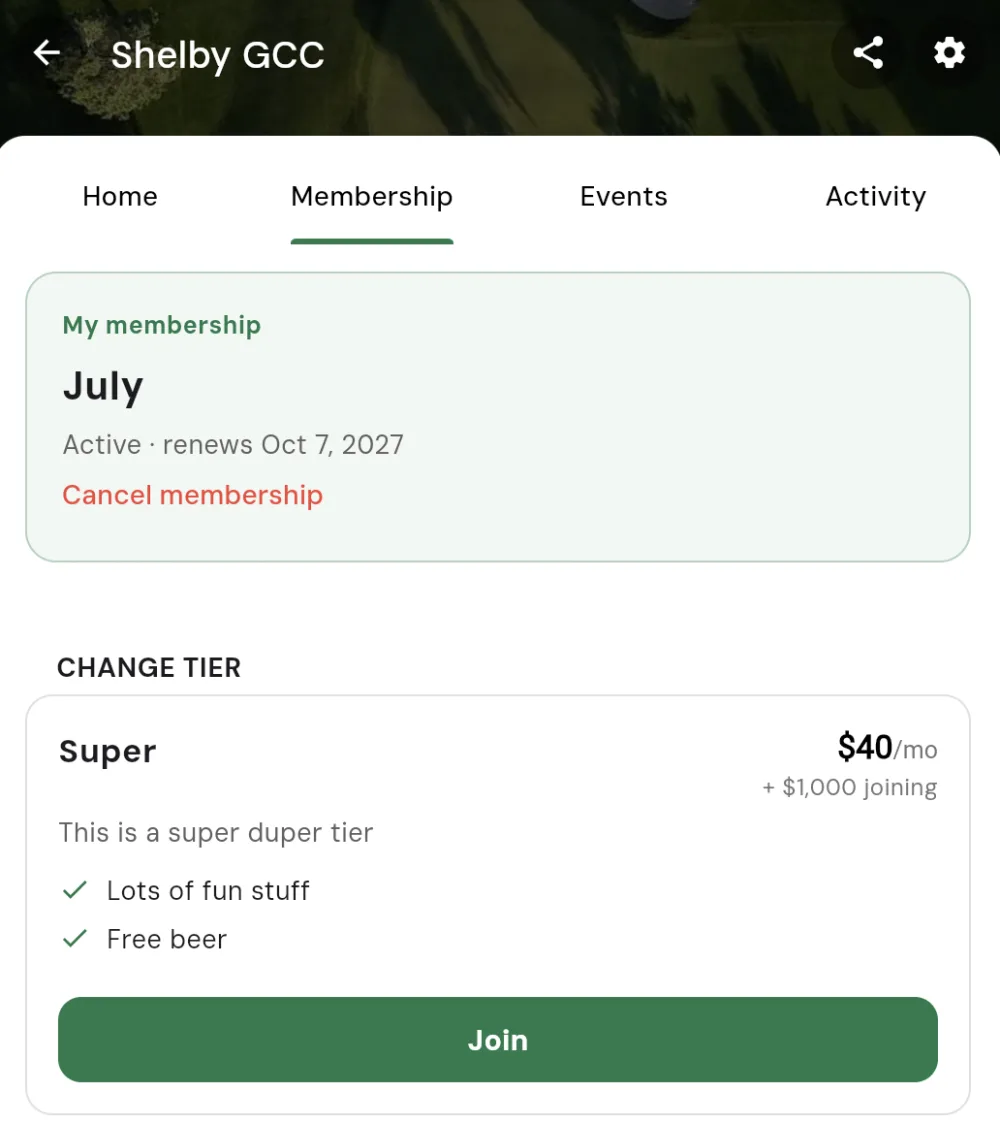
A tier is a membership level members can belong to, each with its own price and benefits. You decide what tiers your club offers and what each one costs. A member belongs to one tier at a time, and they can see which tier they are on under My membership.
Common setups include:
- A Full tier with full dues and all the benefits.
- A Social tier at a lower price for members who join for the social side.
- A Junior tier for younger members at a reduced rate.
You can keep it as simple as a single free tier, or set dues and let members pay. Every tier can list its own benefits so members know what they are getting.
Setting up your tiers
You build your tiers either in the club setup wizard when you first create your club, or any time afterwards in Settings → Members → Tiers. Tap Add tier to create one, then fill in the details. Drag to reorder them so the one you want members to see first sits at the top.
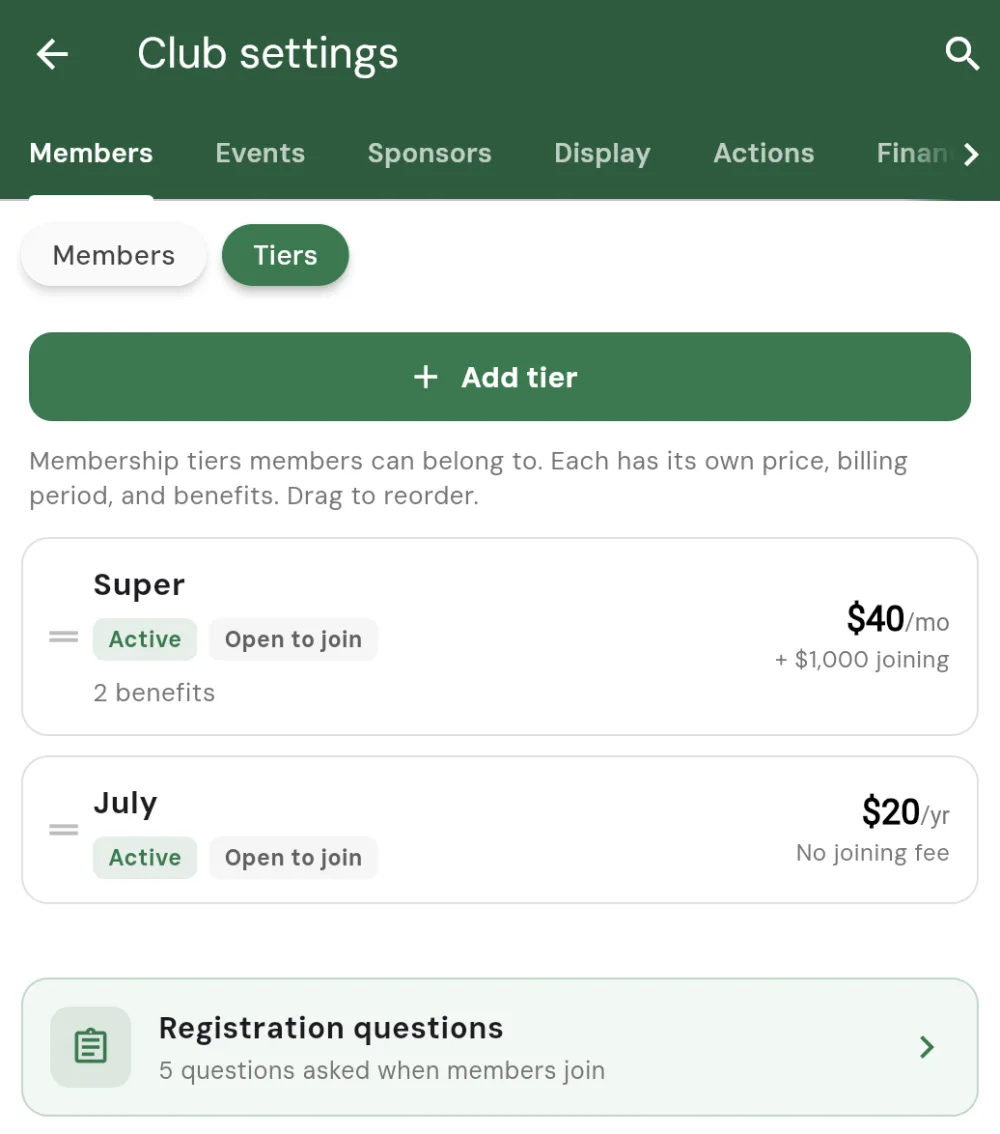
Each tier is organised into a few sections:
- Basics — the tier name (for example Full, Social, or Junior) and a short description.
- Dues and billing — the dues amount, how often they recur (a yearly or monthly billing period), and any one-time joining fee. For example, $200 a year for a Full membership that renews automatically each season. Leave the dues at zero for a free tier.
- Benefits — a list of what the tier includes, so members can see what they get.
- How members join — whether members join the tier themselves or by application.
You can save any tier as a draft while you work on it, then publish it when you’re ready for members to see it and join.
Collecting dues
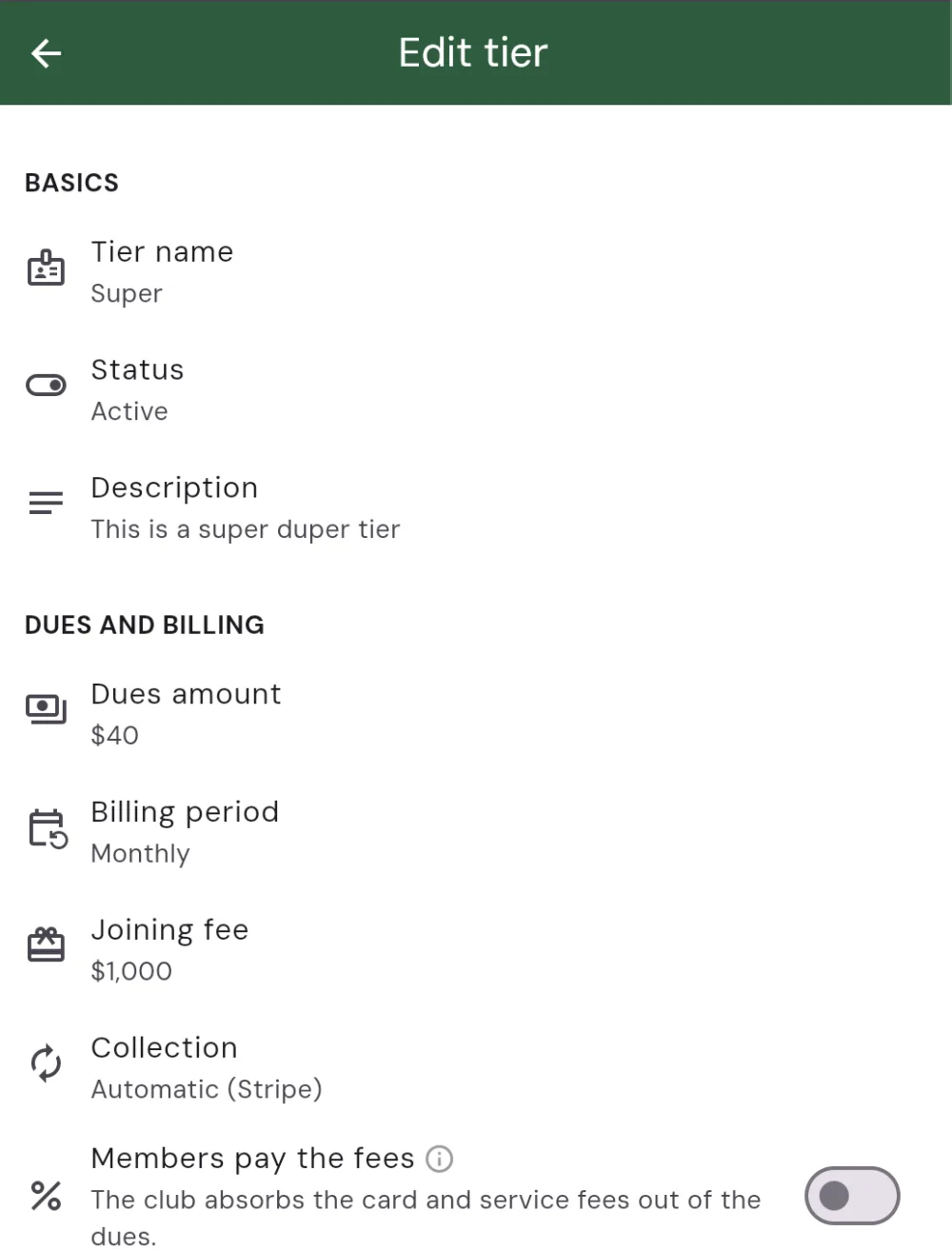
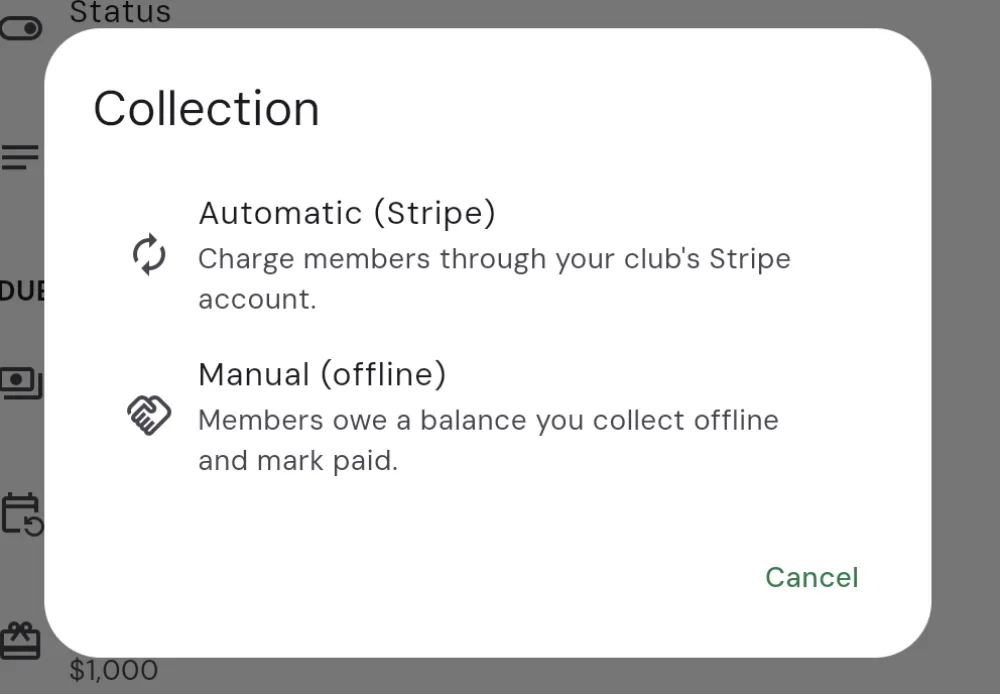
For each paid tier you choose how you want to collect the money. This is the Collection setting, and there are two options.
Automatic (Stripe)
Charge members through your club’s connected Stripe account. When a member joins the tier, Squabbit collects the dues from their card, and the yearly (or monthly) renewal is billed automatically for you. You’ll need to connect Stripe to your club to use automatic collection.
A small platform fee applies to online dues: Stripe’s card processing fee plus a 2% Squabbit service fee. You can choose whether the club absorbs those fees out of the dues, or adds them to the member’s charge so the club keeps the full amount. That is the Members pay the fees toggle.
Manual (offline)
Members owe a balance you collect offline and mark paid. The member joins right away and owes the amount, and you collect it however you like (cash, cheque, Venmo, bank transfer, and so on), then mark it paid once you have it. There is no platform fee on offline dues.
Members paying their own dues
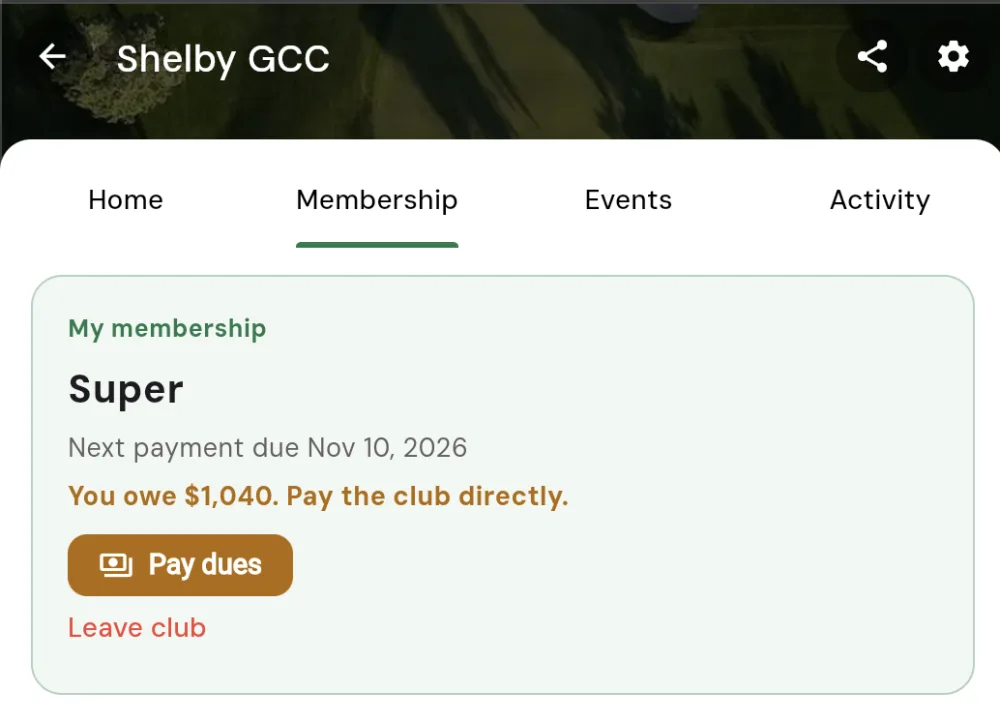
Members handle their own dues from the club’s Membership tab. After joining a paid tier, a member sees how much they owe and a Pay dues button.
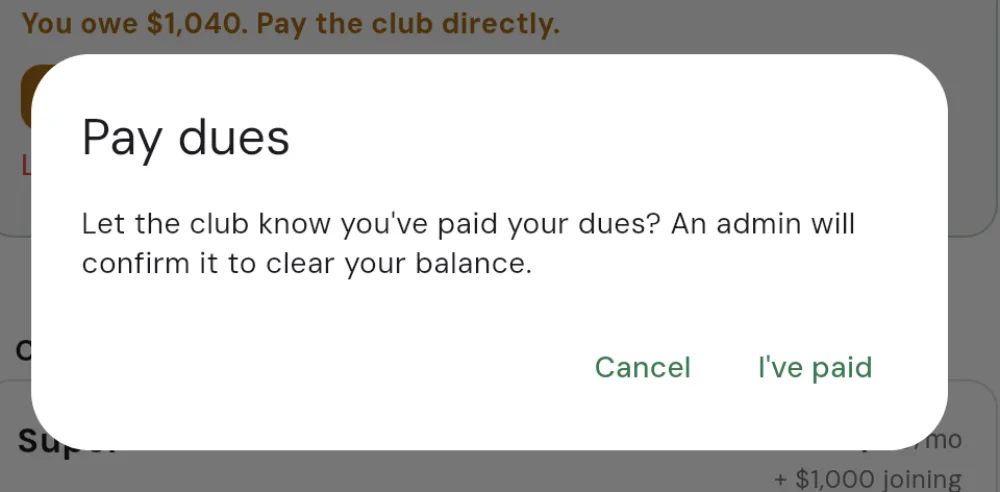
On an automatic (Stripe) tier, Pay dues takes them to checkout to pay by card. On a manual tier, Squabbit shows the amount owed and tells them to pay the club directly, using any offline payment methods you’ve set up. Once they have paid, tapping Pay dues lets them confirm with I’ve paid so the club knows, and an admin confirms it to clear the balance.
Admin tools for managing members
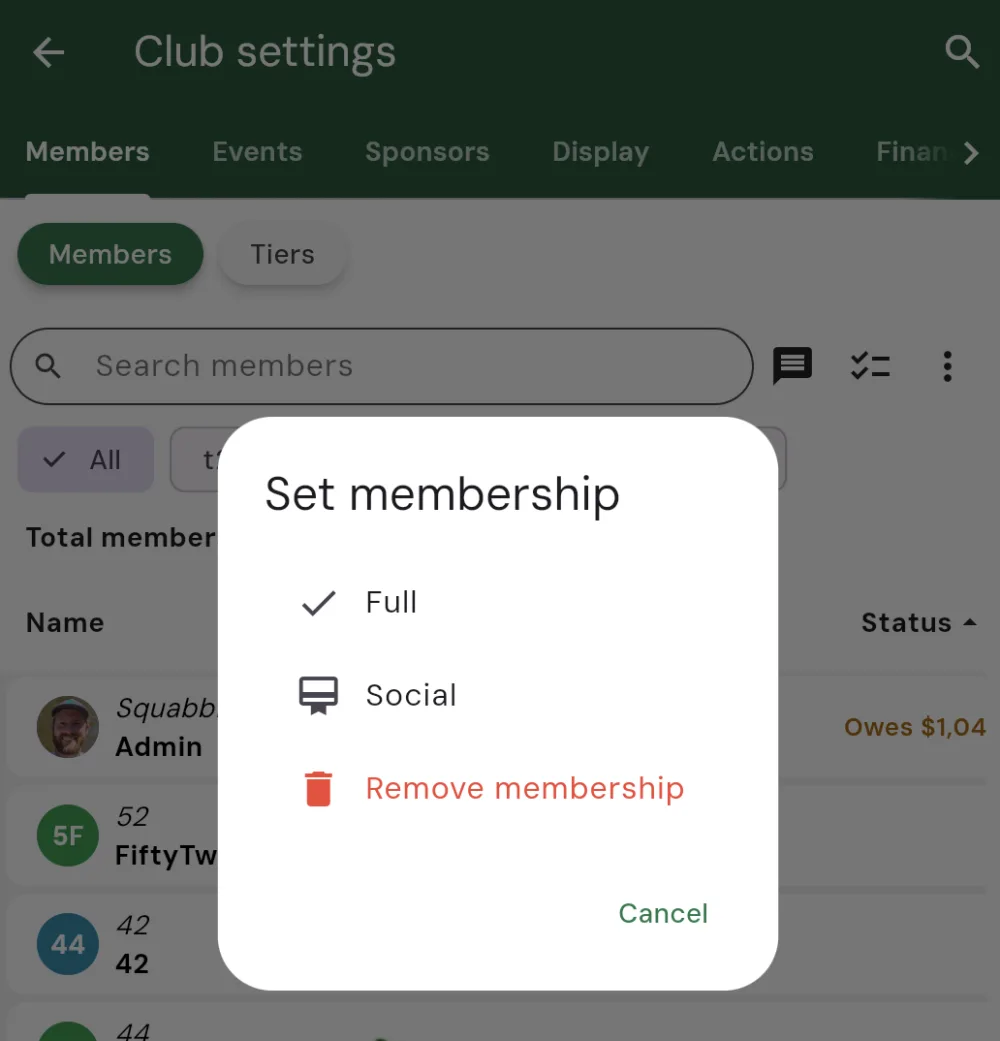
From your club roster you can manage any member’s membership. Tap a member (or select several for a bulk action) to set or change their tier and handle their dues.
- Mark a member paid — when you set a member’s tier, Squabbit asks whether they have already paid. Choose Already paid to clear the balance, or Not yet to show them owing it.
- Change a member’s tier — move a member to a different tier. Moving them keeps any existing subscription and billing the same.
- Comp a membership — put a member on a free tier (or set them up as paid and mark it already paid) so they belong to the club without being charged.
- Remove a membership — end a member’s membership. If they were on a paid subscription, this cancels it. They are notified either way.
A member can also cancel their own paid membership from the Membership tab. When a membership is cancelled, its tier is hidden, and the member stays on until the end of their paid period, then it does not renew.
Free for every club
Club Memberships is free for every club. Creating tiers, setting recurring yearly or monthly dues, collecting them through Stripe or offline, letting members join and pay, and managing your roster all work without a subscription.