Member Groups and Event Visibility
A busy club rarely wants every member to see every event. The ladies league, the men's league, the junior program, and the staff all have their own events, and lumping them together just clutters everyone's calendar. Member groups let you sort your roster into named groups, and event visibility lets you choose which of those groups can see each event, so the right members see the right things.
These two Club Pro features are designed to work together: build your groups once, then point each event at the groups that should see it.
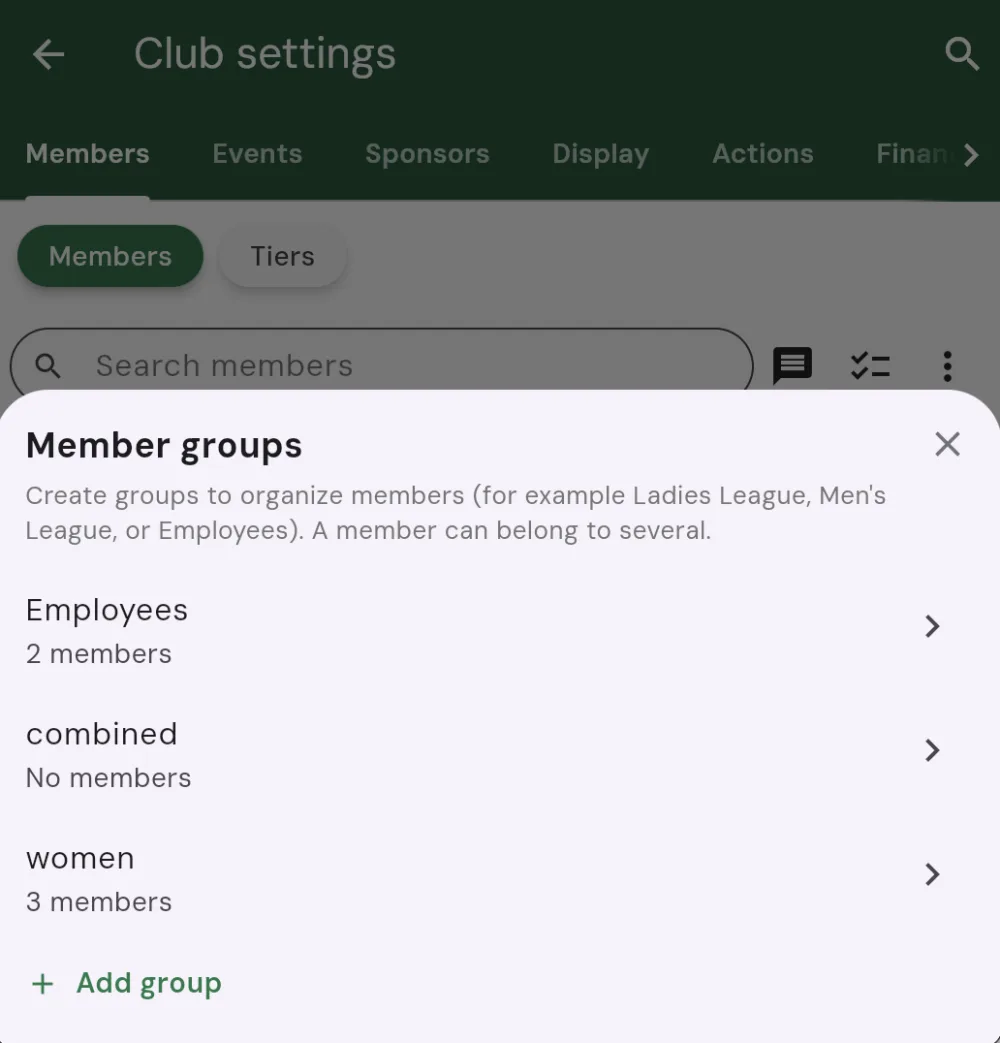
Member groups
A member group is just a named bucket of members. You decide what the groups are: membership type, skill level, men's and women's, juniors, staff, whatever fits your club. A member can belong to several groups at once, so a player can be in both the Men's League and the Seniors group with no conflict.
Creating a group
Open your club, go to the Members tab, and open Member groups from the toolbar (on a narrow screen it is in the overflow menu). This opens a sheet listing your groups, or a short note that you have no groups yet. Then:
- Tap Add group.
- Give the group a Group name (for example
Ladies LeagueorJuniors). - Pick the members who belong in it, then save.
Your new group appears in the list with a count of how many members are in it. You can come back and open Edit group any time to rename it, add or remove members, or delete it.
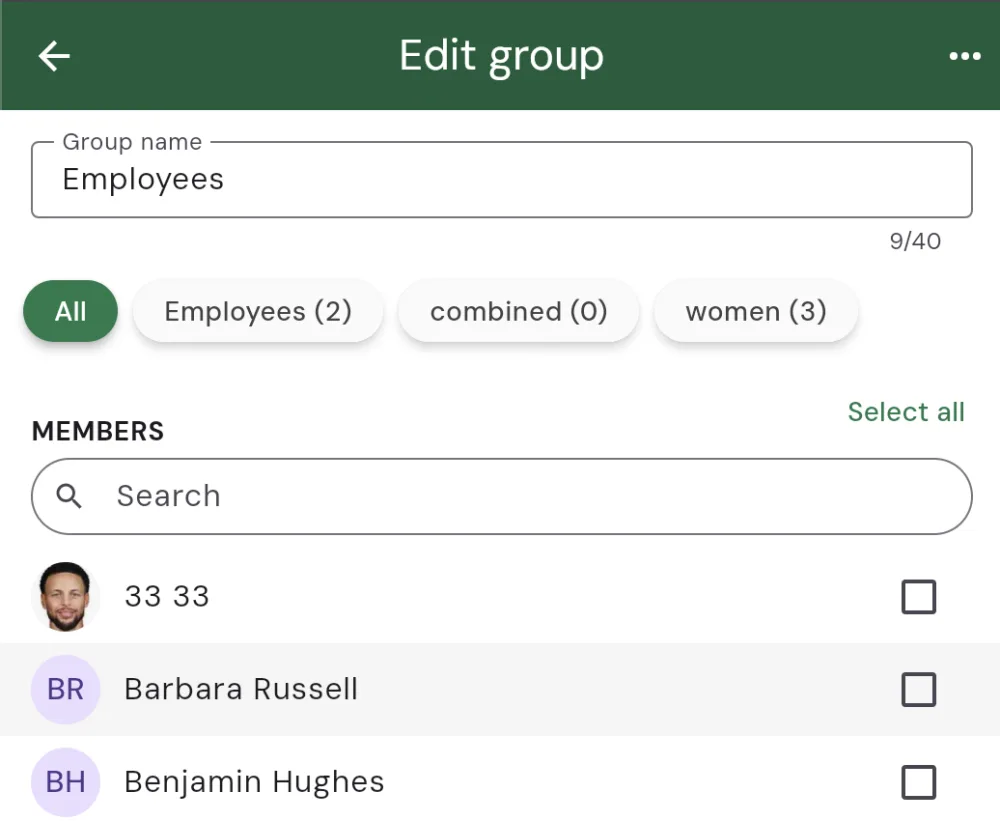
Adding members to a group
There are a few ways to put members into a group, so you can pick whichever is quickest:
- From the group itself: open the group in Edit group and tick the members you want. Use the search box and Select all to move quickly through a long roster.
- From a single member: tap a member's row on the Members tab to open their details, then tick the groups they belong to under Member groups. A Manage groups link there lets you jump straight to creating a new group.
- In bulk: select several members on the Members tab and use Add to group to drop them all into a group at once.
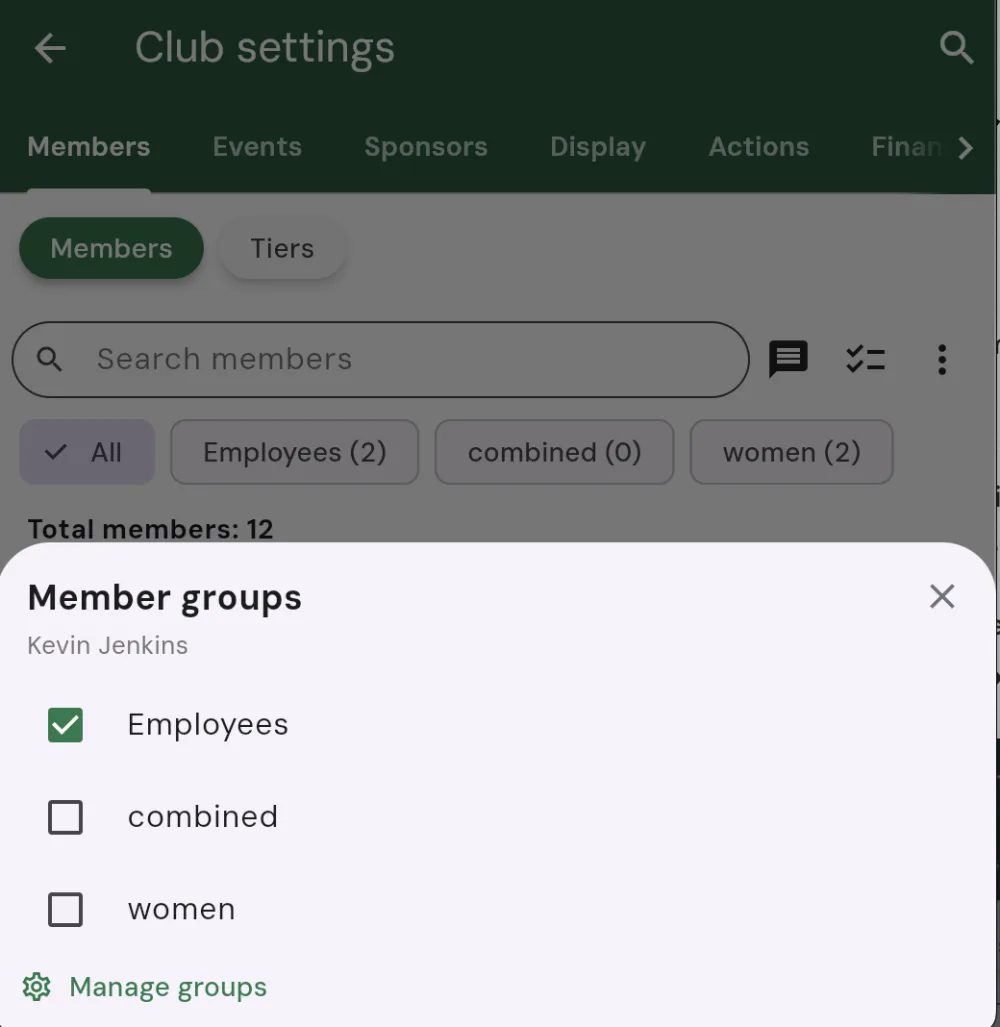
Event visibility
Once you have groups, you can decide who sees each event. When you create a club event, Squabbit asks Who can see this? You have two choices:
- Everyone in the club — the default. All members can see the event and sign up for it.
- Just certain groups — only members in the groups you pick can see the event. Everyone else never sees it at all.
Leaving an event on Everyone in the club keeps things simple for club-wide events: a season opener, a club championship, anything the whole roster should know about. Switch to Just certain groups when an event is only meant for part of the club, like a ladies league night or a junior clinic.
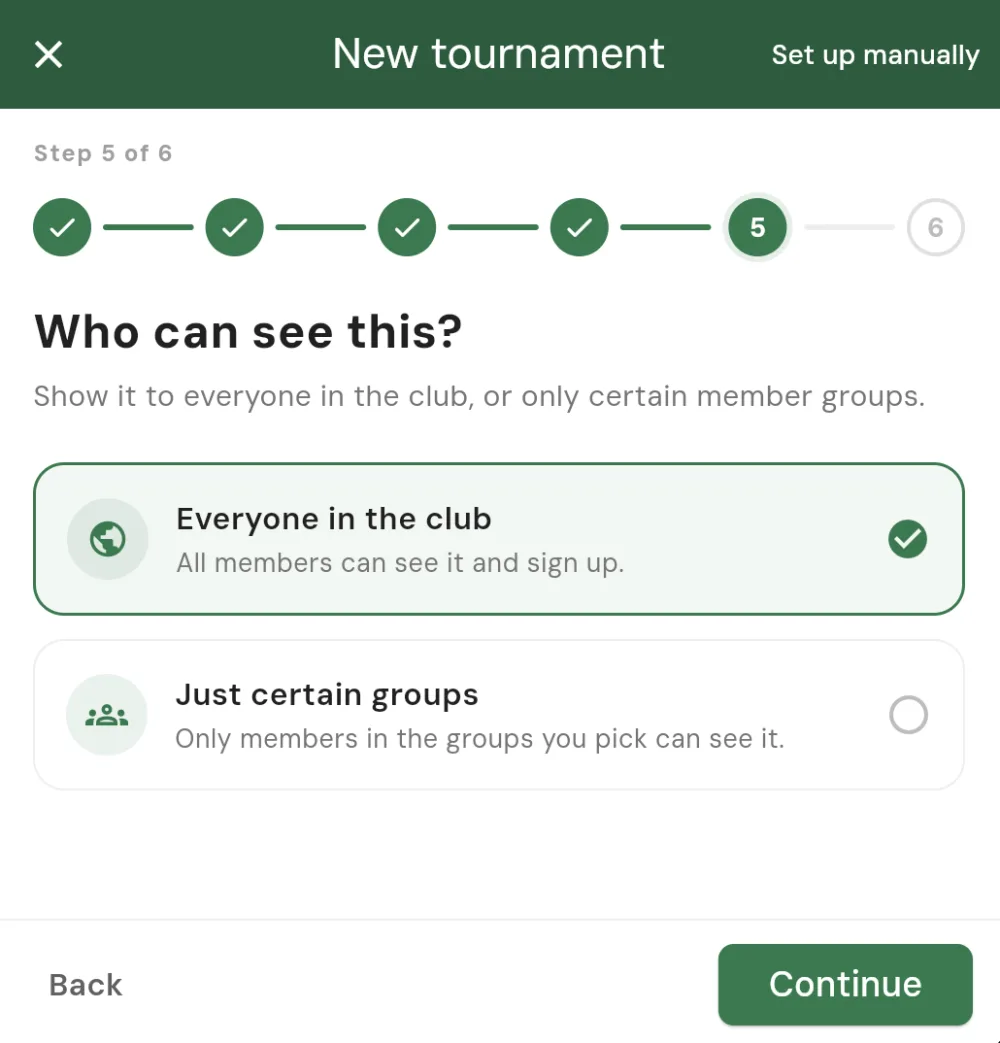
If you choose Just certain groups but have not made any groups yet, Squabbit offers a Create a group shortcut right there so you can set one up without leaving the event.
Changing visibility later
Visibility is not locked in when you create the event. To change who can see an existing event, open the event's menu and choose Visible to. You will see the same two choices, and you can move an event between club-wide and group-restricted whenever you need.
Putting it together
The two features are most useful side by side. Set your groups up once to mirror how your club is actually organized, then target each event at the groups that should see it:
- Build groups for the parts of your club that run their own events (Men's League, Ladies League, Juniors, Seniors, Staff).
- Leave club-wide events visible to everyone so no one misses the big dates.
- Restrict each specialty event to its group, so members only see what is relevant to them and their calendar stays clean.
Because a member can belong to more than one group, you have plenty of flexibility: a single player can see the men's league events, the seniors events, and the club-wide events all at once, without you managing them individually.
Unlocking Member Groups and event visibility
Member groups and event visibility are part of Club Pro. One Club Pro subscription unlocks them for your club, so you can organize your roster and target your events without extra cost per event.
Once Club Pro is active, the Member groups option appears on your Members tab and the Who can see this? step appears when you create a club event.