Adding a course
Squabbit already knows tens of thousands of golf courses, so most of the time you just search for the one you're playing and select it. When a course isn't in the database yet, you can add it. Adding a course is a short step-by-step wizard, and it's photo-first: snap or upload a photo of the scorecard and Squabbit reads the holes, pars and yardages for you, then lets you review and correct them before anything is saved. This article walks through searching, the add-a-course wizard, and requesting a course when you can't add it yourself.
Searching for a course
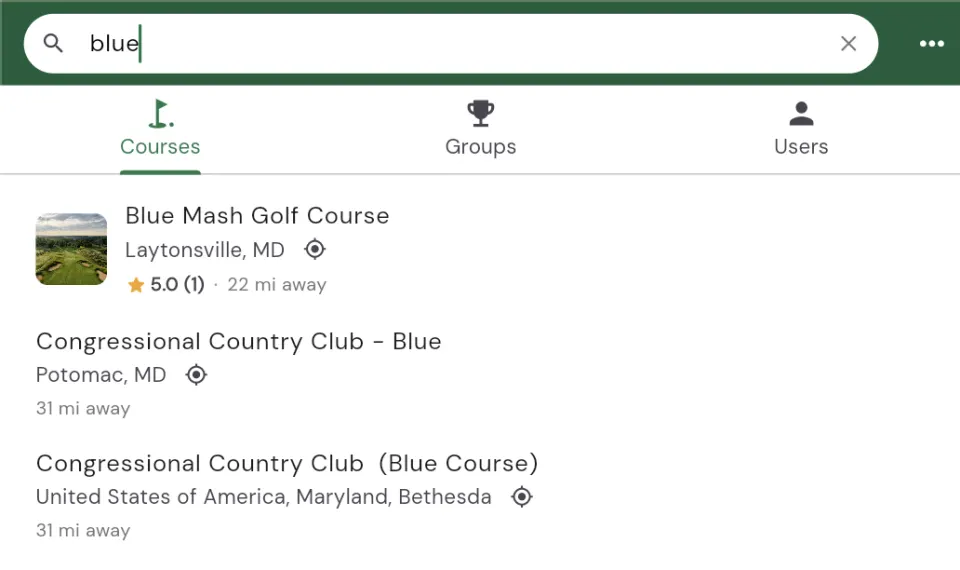
Wherever Squabbit asks you to pick a course (starting a round, setting up a tournament round, and so on) you land on the course search view. From here:
- Start typing the course name in the search box. Results appear as you type.
- Courses in the official database show first. Courses that other players have created appear below, under User created courses.
- If you've allowed location access, courses nearby are surfaced and each result shows how far away it is.
- Your Recent courses are listed when the search box is empty, so a course you play often is one tap away.
Tap a course to select it. If the course you picked is missing pars or other hole details, Squabbit will offer to let you fill them in before you continue.
The add-a-course wizard
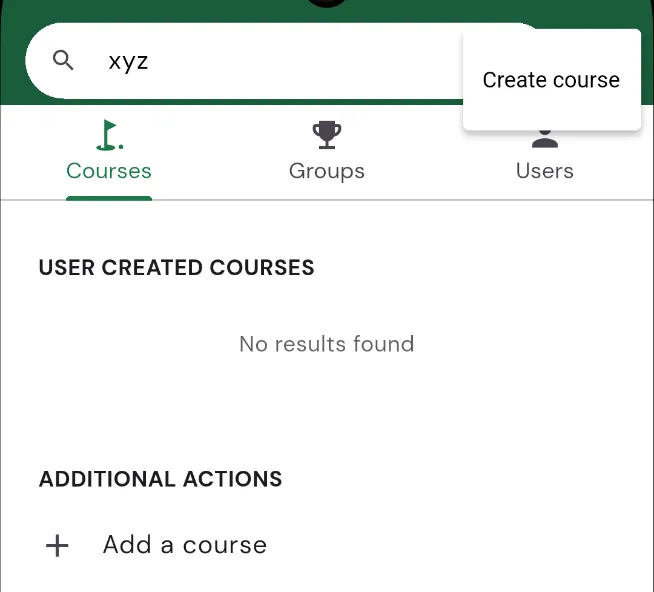
If you search and the course you want isn't there, you can create it. Scroll to the bottom of the results to Additional actions and tap Add a course, or tap the overflow menu (the three dots in the top corner) and choose Create course. Both open the same step-by-step wizard.
The wizard walks you through a few short steps. You can move back and forth between them, and nothing is saved until you finish.
Start with the scorecard
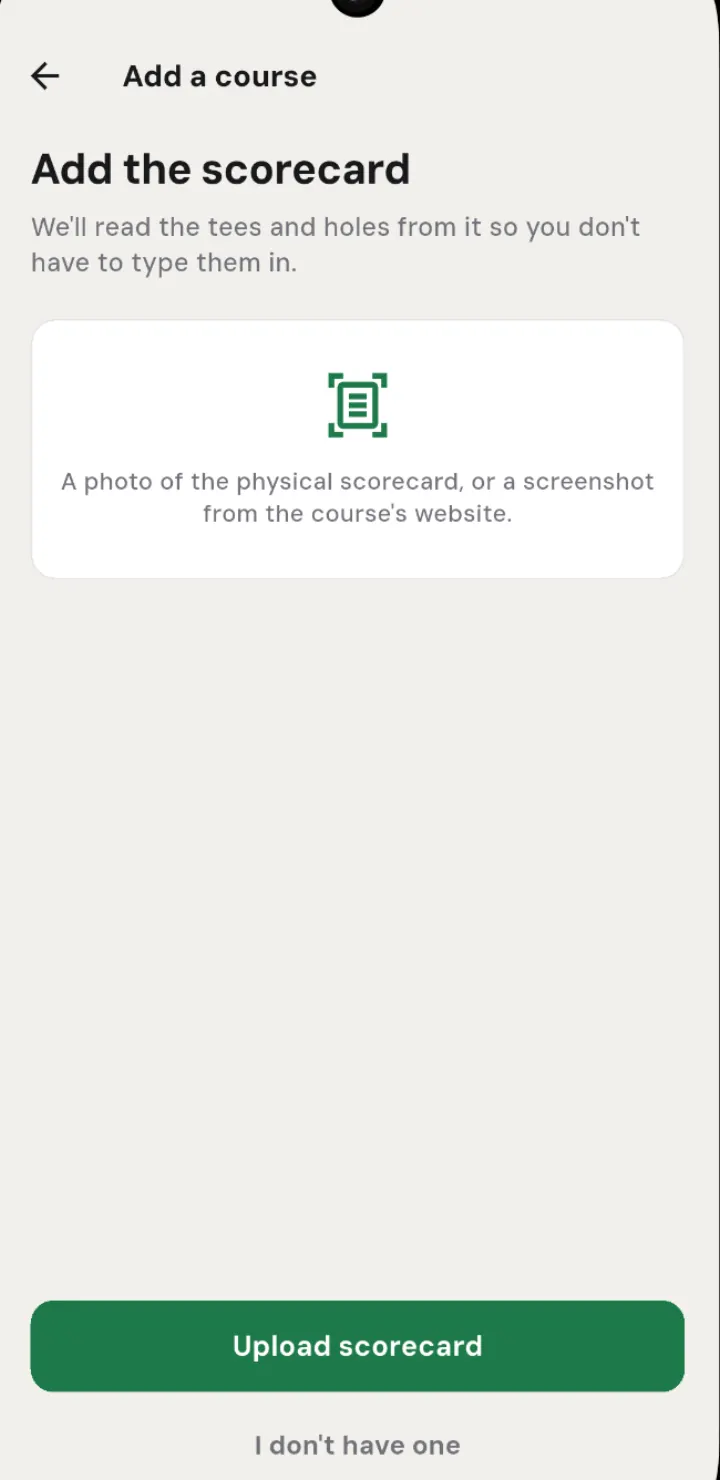
The wizard opens on Add the scorecard. This is the fastest way to build the course: Squabbit reads the tees and holes from a photo so you don't have to type them in.
- Tap Upload scorecard and take a photo of the paper scorecard, or choose one from your gallery. A screenshot from the course's website works too.
- You can add more than one photo, for example the front-nine side and the back-nine side, or one photo per nine on a course with more than 18 holes. Each photo you add shows as a thumbnail you can remove.
- Squabbit reads the scorecard on its servers and pulls out the tees, per-hole yardages, pars and stroke indexes. It also picks up the names of each nine and whether the distances are printed in yards or metres.
Don't have a scorecard handy? Tap I don't have one to skip this step and place the course by location instead.
Find the course
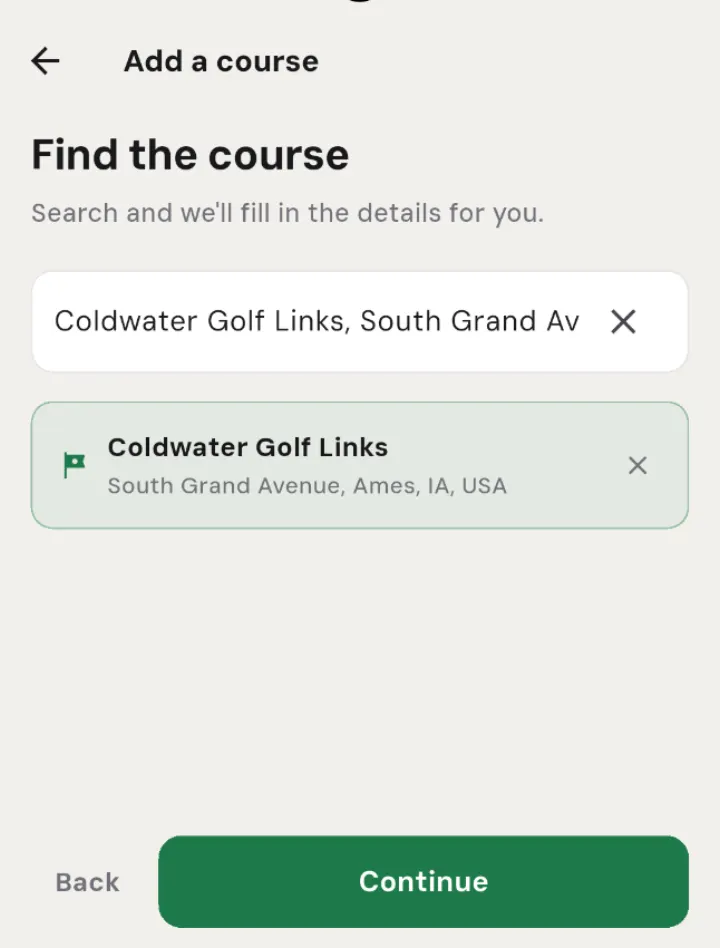
If you uploaded a scorecard, Squabbit usually works out where the course is on its own and skips this step. You'll only see Find the course when you skip the photo, or when the scan can't place the course. Search for the course and pick it from the list. The course you picked shows in a card, and if it's wrong the change-location control (the x on the card) clears it so you can search again.
What type of course is this?
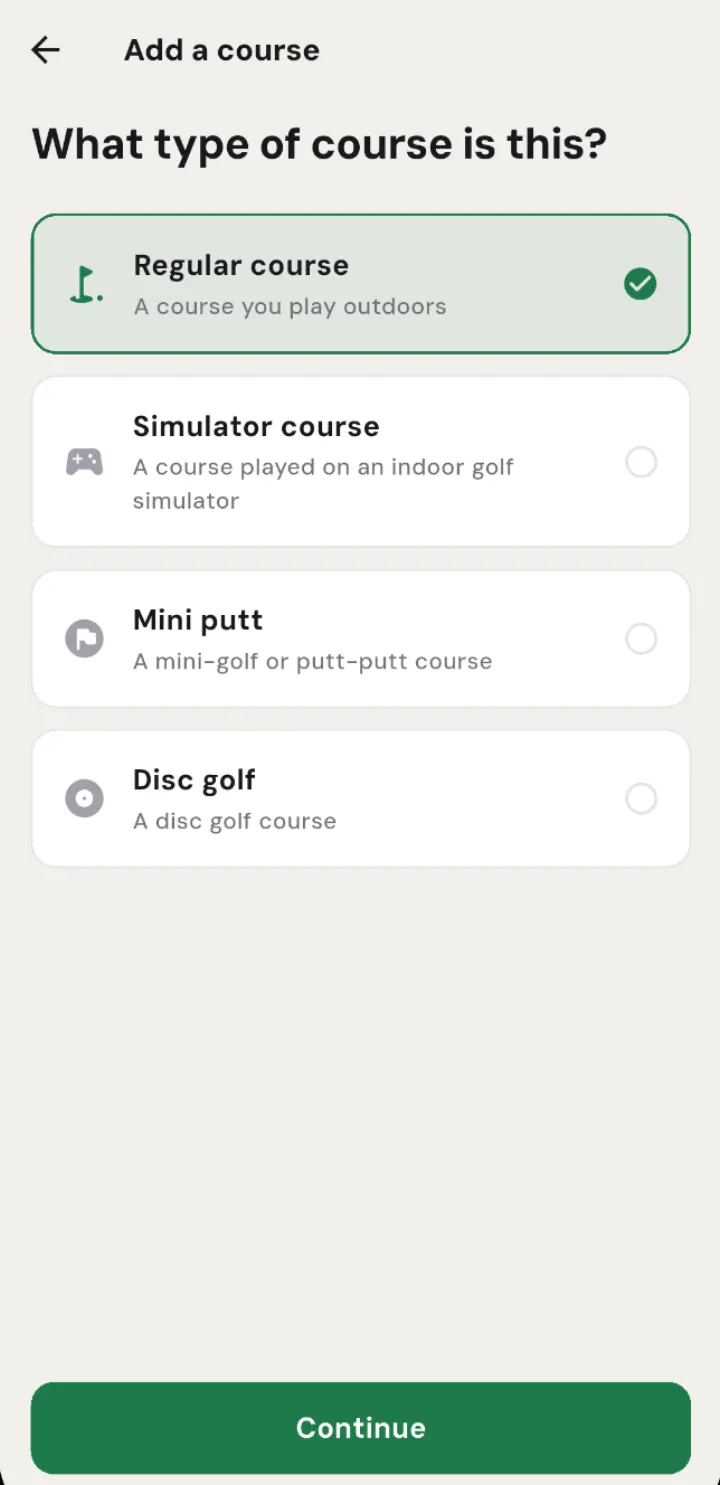
Next Squabbit asks "What type of course is this?". Pick the one that matches what you're playing:
- Regular course: a course you play outdoors.
- Simulator course: a course played on an indoor golf simulator.
- Mini putt: a mini-golf or putt-putt course.
- Disc golf: a disc golf course.
Squabbit builds the course
When you continue, Squabbit reads the scorecard and builds a draft of the course. This can take up to around 30 seconds. If a course that looks like the same one already exists, you'll see it here so you can use it instead of creating a duplicate (see below). Otherwise the draft opens for you to review.
Check it and save
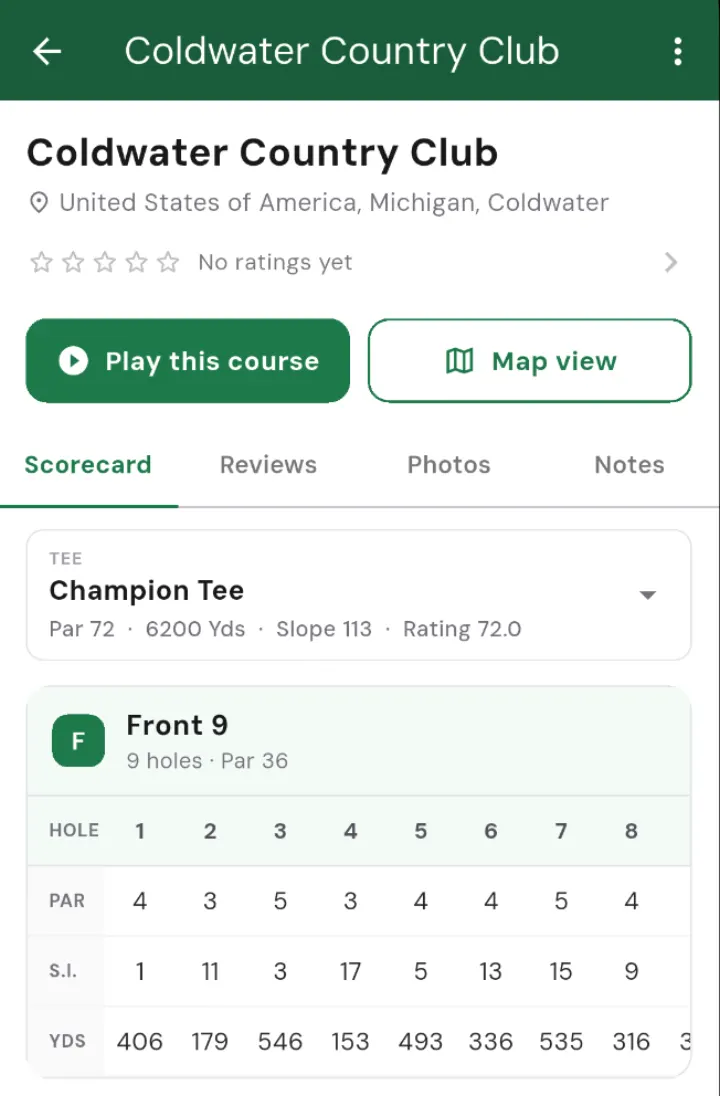
Nothing is saved until you say so. Once the draft is built, the new course opens in edit mode on its Scorecard page, pre-filled with everything the scan read so you can check it and fix anything that was misread:
- Switch between the tees it found (Squabbit always stores courses in yards and converts distances for you).
- Tap any par, stroke index or yardage to correct it.
- Rename each nine.
When everything looks right, save to finish. The scorecard photos you uploaded are kept with the course under the Photos tab, and the course joins the shared database so the next person who searches for it will find it too.
If the course already exists
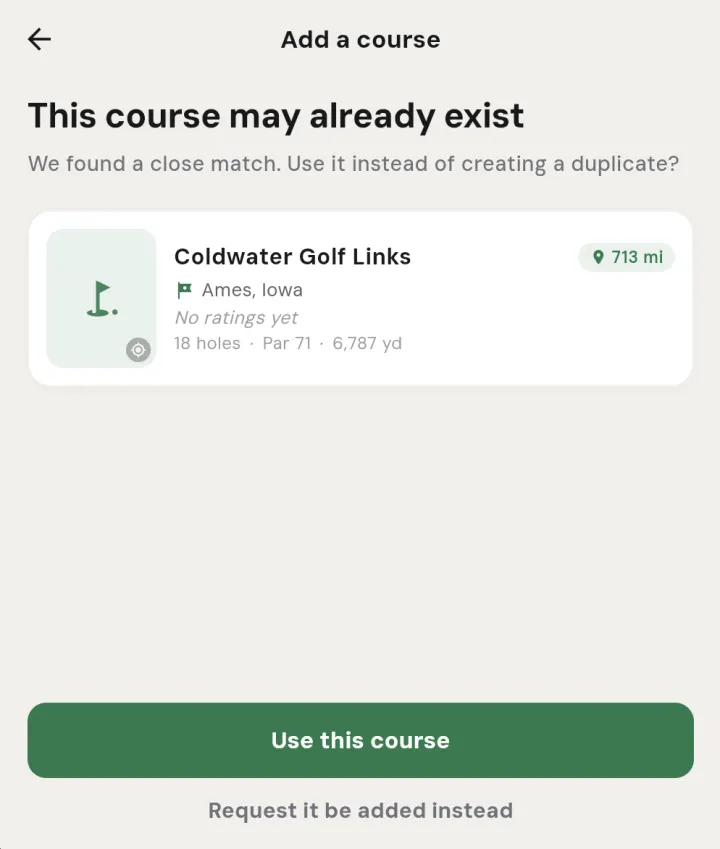
If Squabbit finds a course that matches the one you're adding, it shows "This course may already exist" with the match as a course card (with the distance from you when it knows your location) instead of creating a duplicate. Tap Use this course to switch to the existing one, which keeps everyone's rounds together. If the match is real but its details were out of date, Squabbit may have just refreshed it from your scorecard and will tell you so. If it isn't actually your course, choose Request it be added instead to move on to the request step below.
Requesting a course
Sometimes you can't add a course yourself, for example if you don't have the scorecard handy. From the duplicate step, tap Request it be added instead and pick the reason:
- The course is on Squabbit but its details are wrong or missing: Squabbit points you to the existing course so you can fix it directly by uploading a scorecard to it, rather than creating a duplicate.
- The course isn't on Squabbit or another reason: fill in the course name, location and any details, then submit. The request goes to the Squabbit team and they'll get it added.