Inviting Players to Your Tournament
Answer a couple of questions and we'll show you the best way to get your players in.
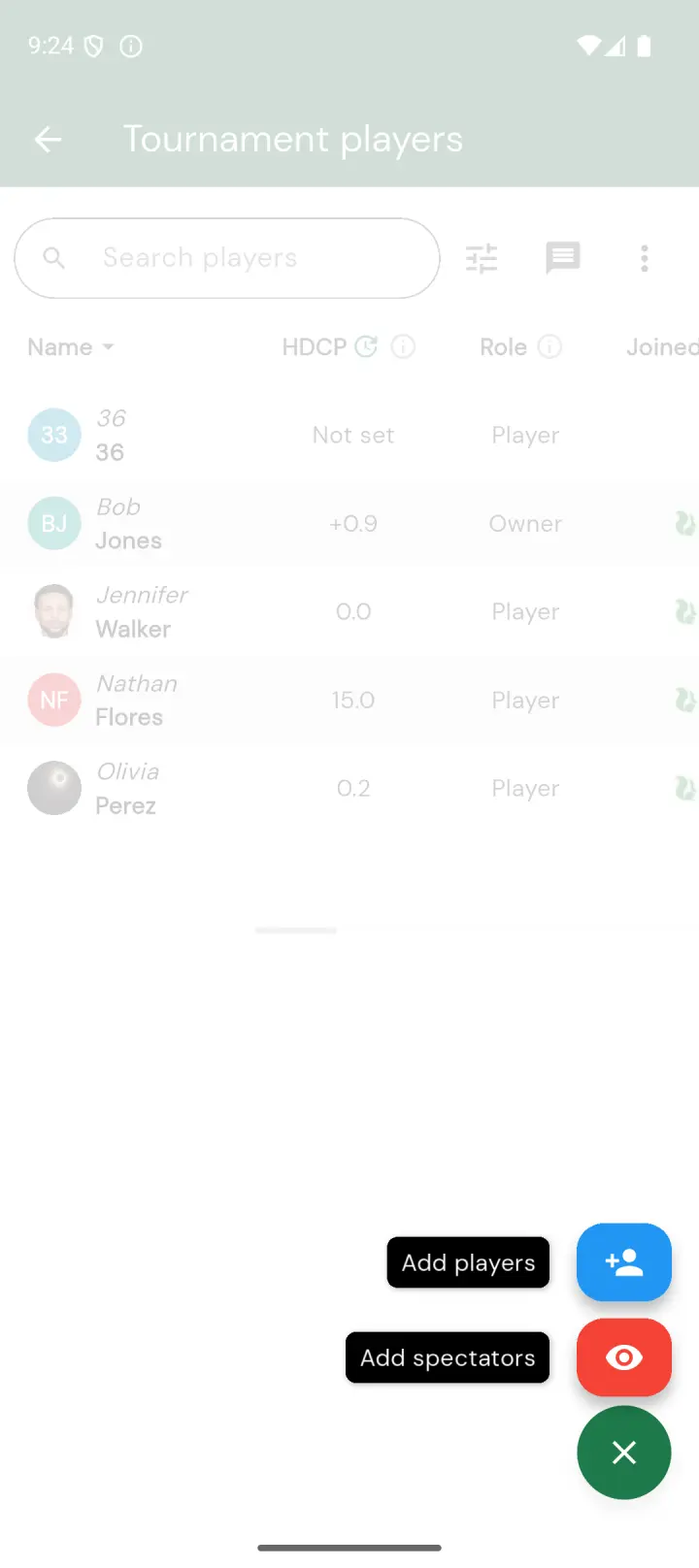
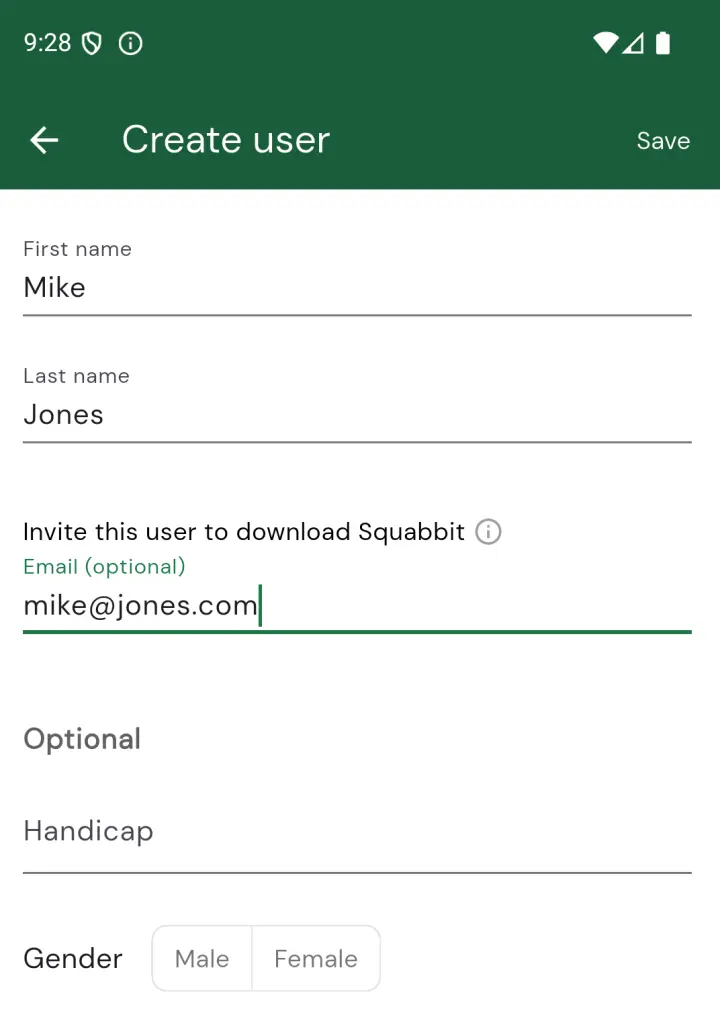
Tap the + button on your tournament's player list, enter their name and email address, then tap Done.
Squabbit sends them an invitation email with a link to your tournament. When they tap the link, it opens the app. If they don't have the app, it takes them to the App Store or Play Store first.
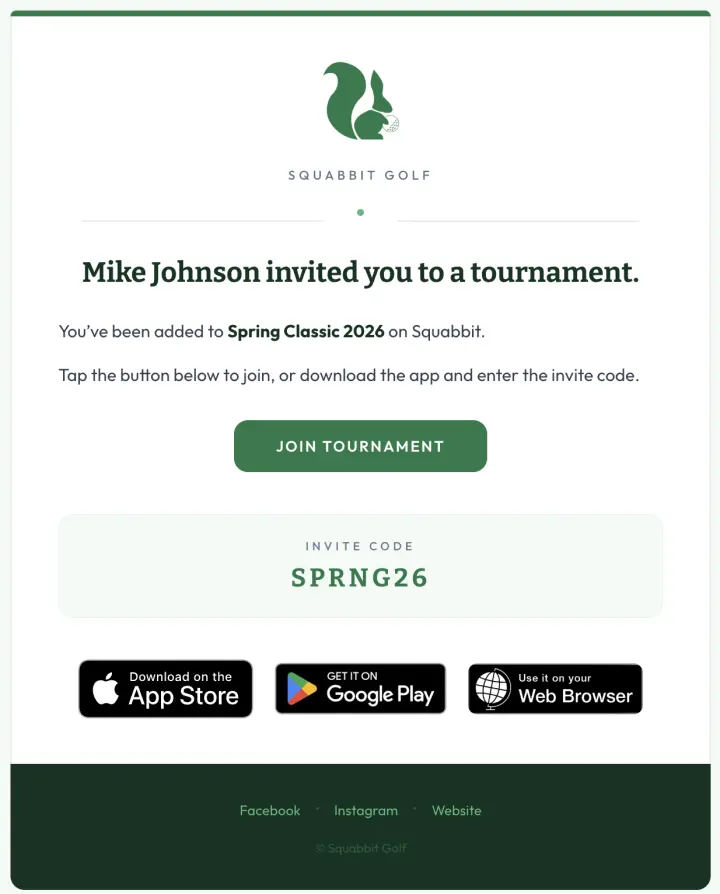
When they sign up using the same email you entered, they're automatically connected to the tournament. They'll see it on their home page and can start entering scores right away.
Tap the + button, enter their full name (first and last), and tap Done. You can skip the email field.
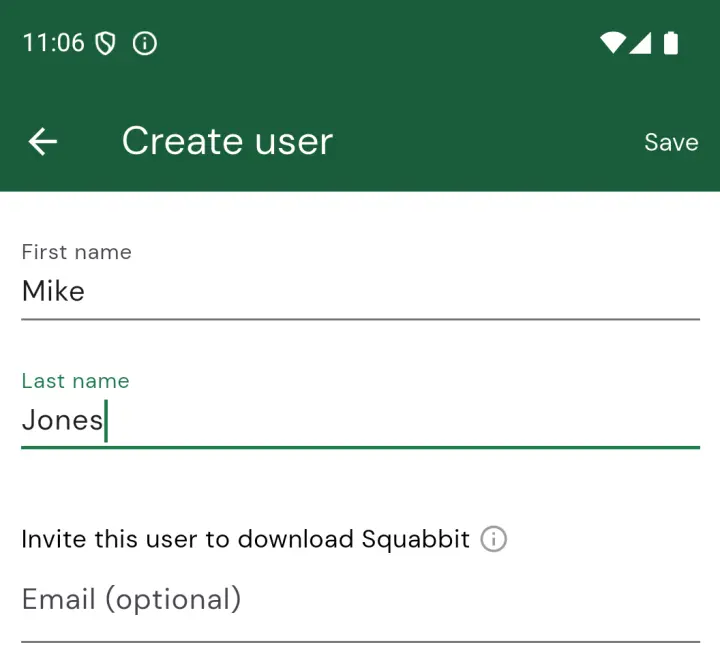
When they sign up with the same name, Squabbit automatically detects the match. The app finds users in the tournament with the same name that don't have an account yet, and asks the player to confirm: "Is this you?"
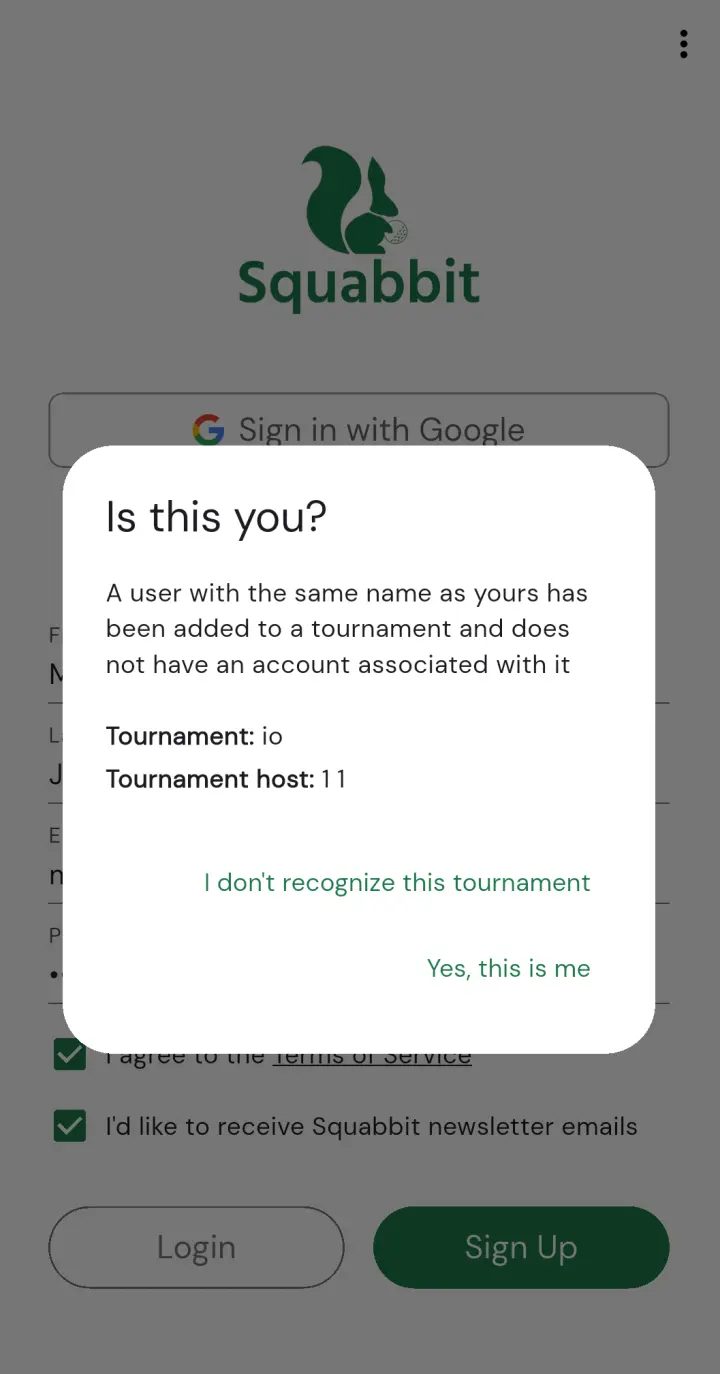
Once they confirm, they're connected to the tournament and can see the leaderboard and start their round.
From your tournament, tap the share icon at the top of the screen. You can copy either the tournament link or the invite code.
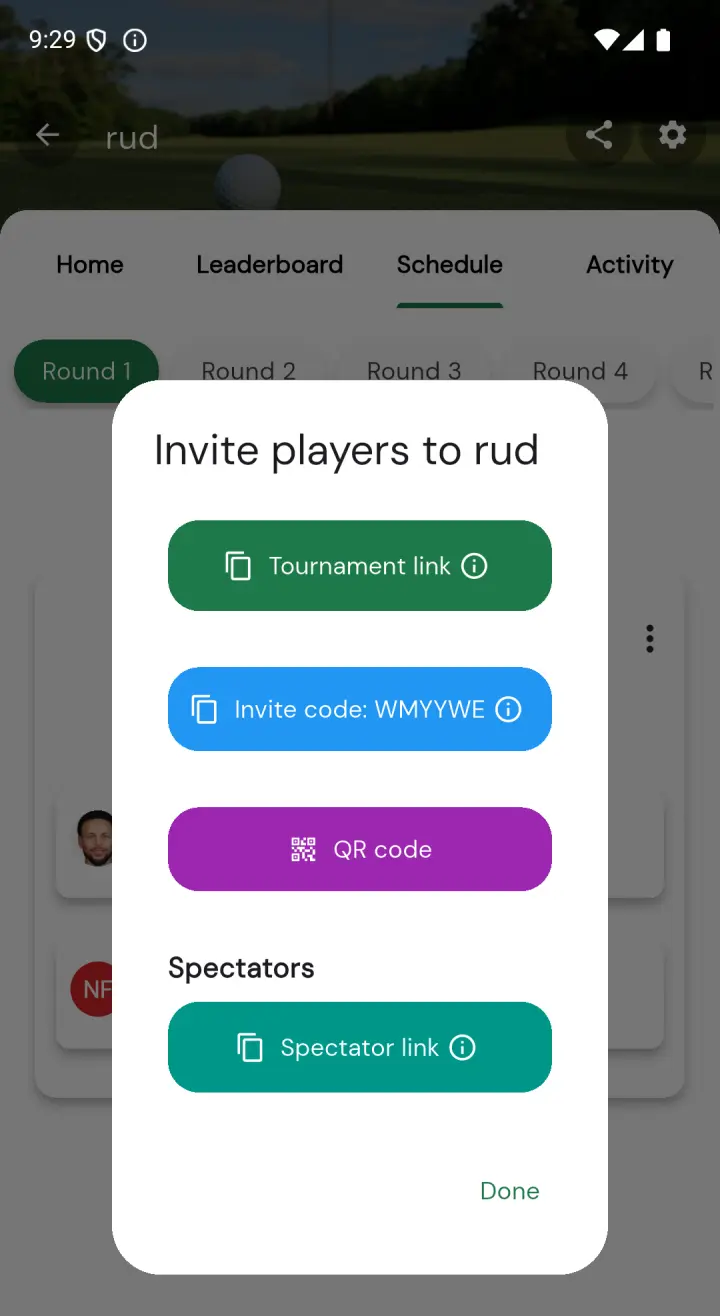
Text, email, or post the link or code wherever your group communicates.
If using the link: They tap it and the tournament opens in the app.
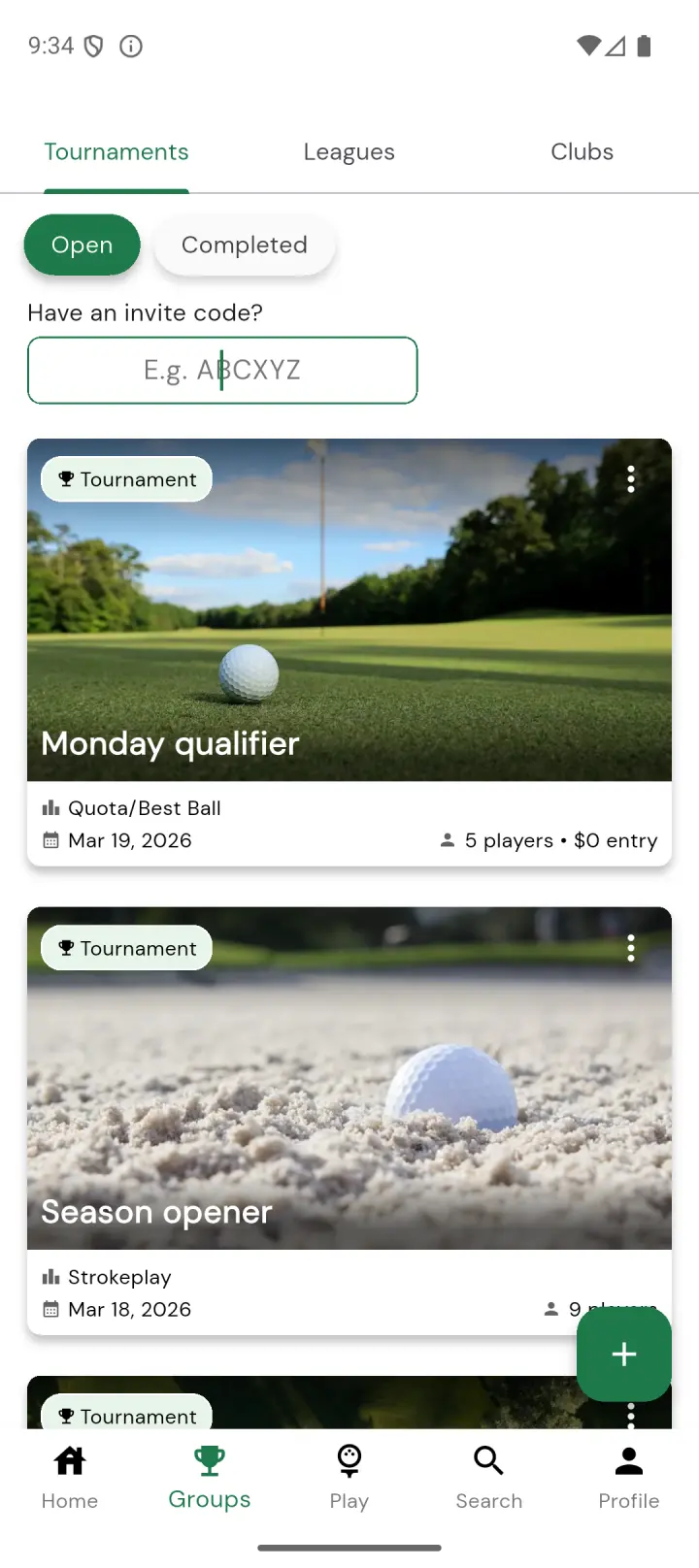
If using the invite code: They go to the Groups tab at the bottom of the app and enter the code in the invite code field at the top.
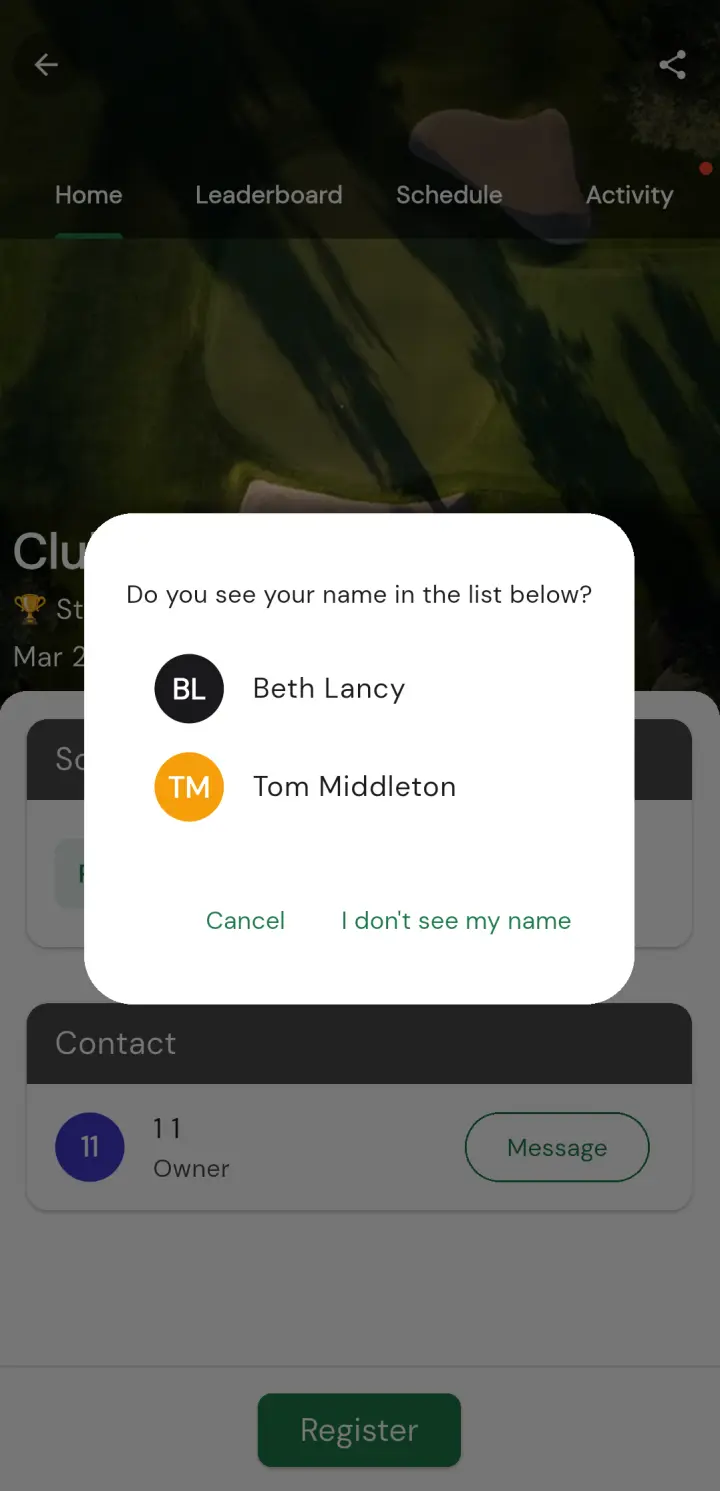
If you already added them by name, the app will show a list of players that don't have an account yet. They find their name, tap it, and confirm. If you haven't added them yet, they can register directly depending on your tournament settings.
From your tournament settings, go to the Actions tab, tap Print tournament assets, and print your scorecards or cart signs. Each one includes a unique QR code that links directly to that specific scorecard.

On the day of the tournament, players scan the QR code on their scorecard or cart sign with their phone's camera. The tournament opens straight away as a spectator, so anyone can follow the live leaderboard without an account or a download.
The first time someone opens the tournament, Squabbit asks "Are you playing in this tournament, or just spectating?" Anyone who chooses I'm spectating keeps watching the leaderboard. Players who choose I'm playing are asked for their name so the app can find them on the roster.
After entering their first and last name, Squabbit matches it against the players the organizer has already added. It handles nicknames and small spelling differences, so "Mike" still finds "Michael". They confirm "Is this you?" and they're connected to their player entry, ready to enter scores. No account or sign-up is required to start scoring.
If no name matches and self-registration is turned off, Squabbit explains what to do: if they see their name on the leaderboard they can tap it and claim it, otherwise they should ask the organizer to add them or to turn on self-registration. Players who already have a Squabbit account are simply asked to sign in.
A banner at the top encourages spectators and players to sign up so their scores are saved. When they do create an account, it's automatically linked to their player entry.
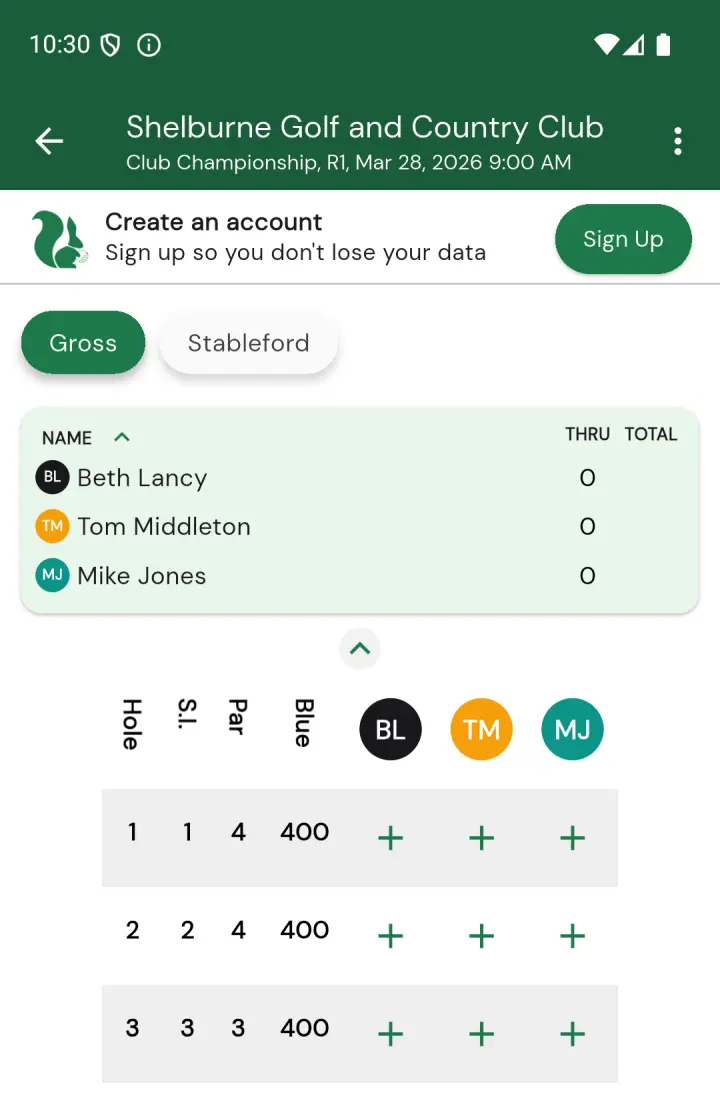
Send the tournament link, or let people scan the QR code from your printed scorecards and cart signs. Either one opens the tournament for anyone who taps it.
The tournament opens straight away with no account or download needed. Spectators can watch the live leaderboard and follow along as scores come in.
When they first open the tournament, Squabbit asks "Are you playing in this tournament, or just spectating?" Anyone who's actually playing can choose I'm playing, enter their name, and be matched to their spot on the roster so they can enter scores.
All methods at a glance
| Method | Best for | Account required? |
|---|---|---|
| Add with email | Players you have contact info for | Yes, at signup |
| Add by name | Players you know but don't have their email | Yes, at signup |
| Share link / invite code | Self-service registration | Yes, at signup |
| Scorecard QR code | Day-of tournament, walk-up players | No — scan, pick your name, and score |
| Follow as a spectator | Friends, family, and fans watching the leaderboard | No — open the link or QR and follow live |