Default Tees and Conditional Tees
Every course in a tournament round has a single default tee: the tee that players are set to play from unless you say otherwise. Setting or changing it applies to your whole field automatically, including players who already have rounds, and a multi-course round can give each course its own default tee. If you have a mixed field where different players should play different tees, you can also add conditional default tees so that Squabbit automatically assigns the right tee based on each player’s handicap, gender, or age.
This tutorial covers where these settings live and how to set them up.
Where tees are set
Tees are set per round, in the round’s course settings. Open your tournament and go to the . In the round’s settings you’ll find the Course(s) and tees section, where each course shows a Default tee row underneath it.
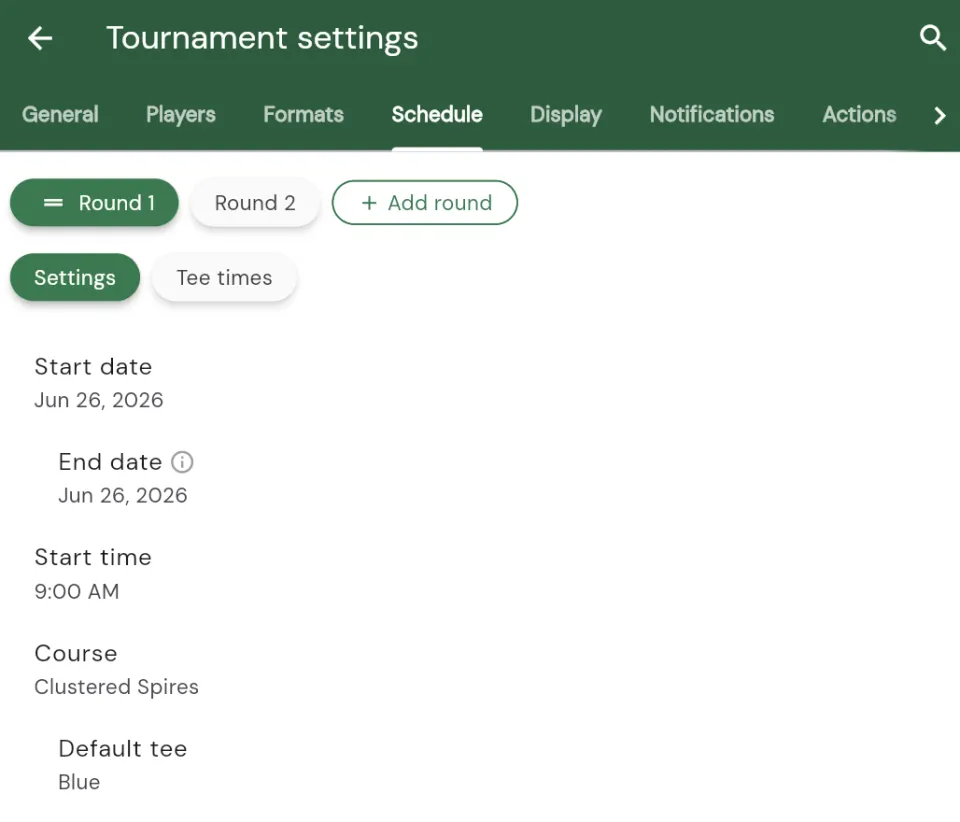
Setting the default tee
Tap the Default tee row under a course to choose the tee that most of your field will play from.
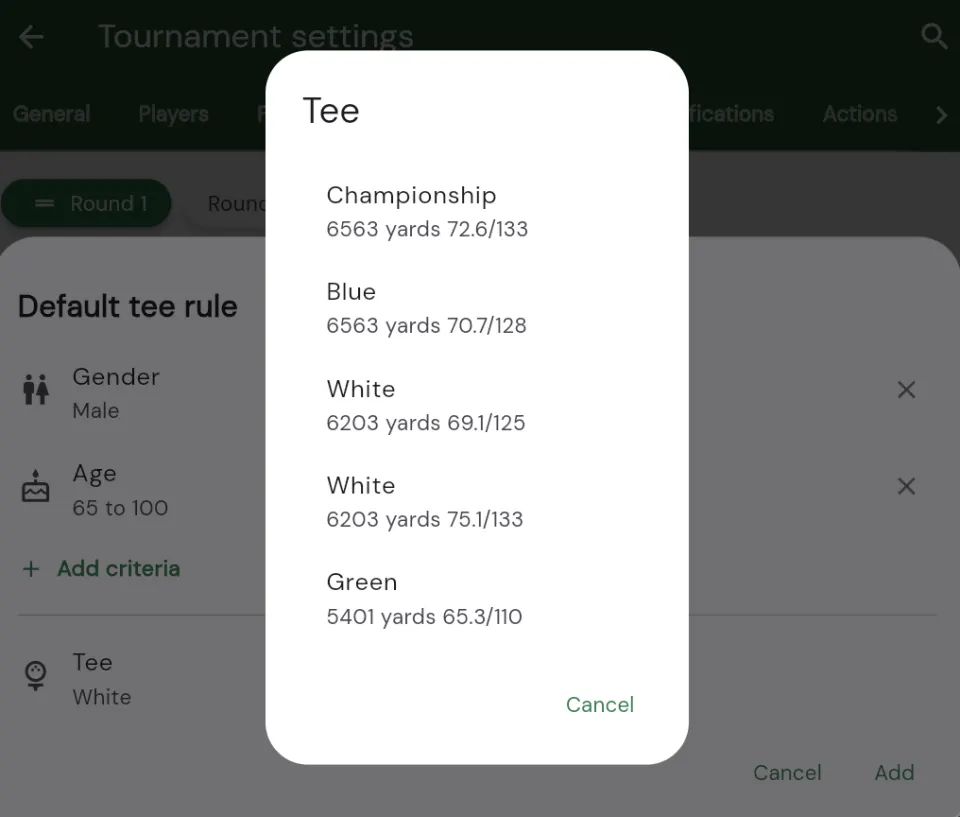
The default tee is optional. If you don’t set one, Squabbit defaults to the longest tee on the course. Whatever you pick here is the tee every player uses unless a conditional default tee (below) or a per-player override applies.
Setting or changing the default tee applies to everyone at once, including players who already have rounds. If your field is already set up and you switch the default from Blue to White, existing players move to White automatically (the same way flights update when you change them). Only players you’ve given a manual per-player tee stay put. That means you can adjust the default tee at any point before or during setup without having to touch each player.
Per-course default tees
If your tournament round is played across more than one course, each course keeps its own default tee, shown as Default tee for {course name}. Set the right tee for each course and every player gets the correct tee for whichever course they’re on, so a mixed multi-course event doesn’t force one tee across all of them.
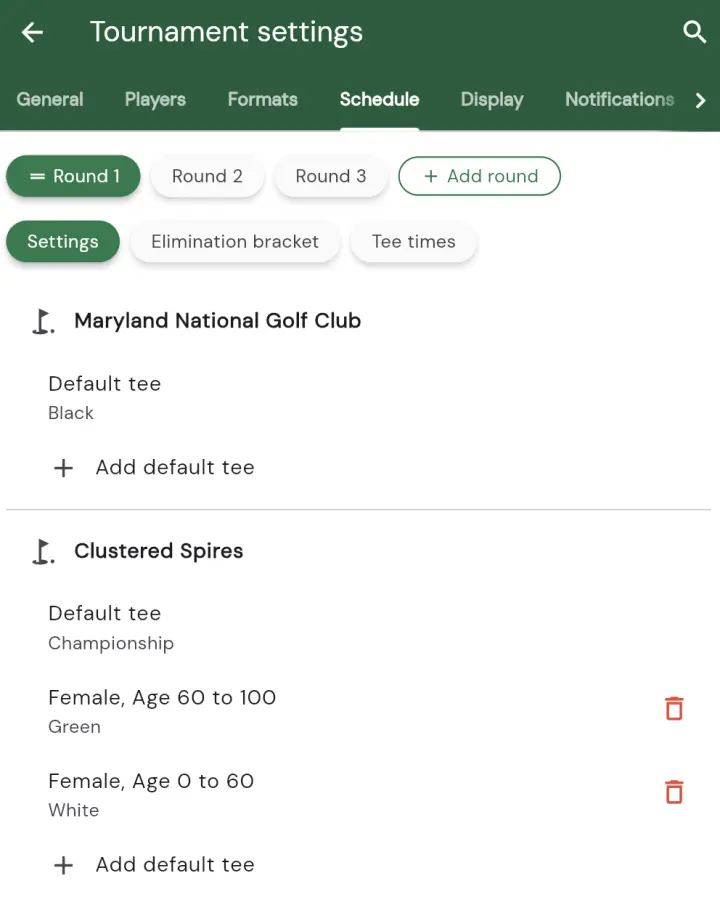
Conditional default tees (below) work per course too, so you can give each course its own set of rules.
Adding conditional default tees
A conditional default tee is a rule that says “players who match this criteria should play this tee instead.” This is perfect for events where, for example, higher-handicap players move up a tee, or where you want different tees by gender or age.
Under the course’s default tee row, tap + Add default tee to create a rule.
This opens the Default tee rule editor. A rule has two parts: the criteria that decides who it applies to, and the tee those players get.
Choosing the criteria
Tap + Add criteria and pick what the rule should match on. You can choose from:
- Gender: matches players marked Male or Female.
- Age: matches players whose age falls within a range you set (for example 45 to 70).
- Handicap: matches players whose handicap falls within a range you set (for example 2.5 to 10.5).
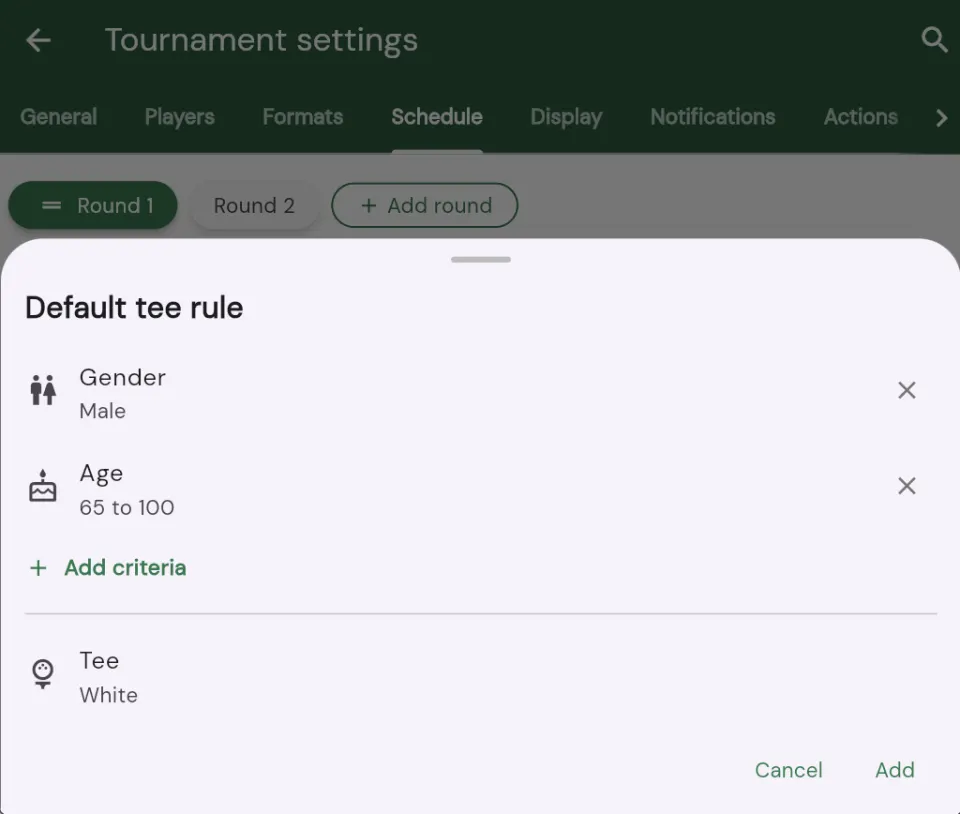
You can add more than one criteria to the same rule. When you do, a player must match all of them for the rule to apply. For example, a rule with Gender: Female and Age: 45 to 70 only assigns its tee to female players between 45 and 70. To remove a criteria, tap the small close icon beside it.
Choosing the tee
Tap the Tee row at the bottom of the rule editor and select the tee that matching players should play from. Once you’ve set at least one criteria and picked a tee, tap Add (or Save when editing) to store the rule.
The finished rule appears under the course, showing a plain-language summary of its criteria (for example Female, Age 45 to 70) and the tee it assigns. You can add as many rules as you need, tap a rule to edit it, or tap the red delete icon to remove it.
How players get assigned
Squabbit checks your conditional default tees first. If a player matches a rule, they’re assigned that rule’s tee; otherwise they get the plain default tee. This runs both when a new player is added and whenever you change the default or conditional tees, so your existing field is kept in sync automatically. You can always override any individual player’s tee afterward on the Players screen (tap a player, then change their tee). A manual override takes priority and won’t be replaced when you later adjust the defaults.
For more on setting up a tournament from scratch, including courses and players, see the Creating a Tournament tutorial. To learn how tees affect scoring, see the How Handicaps Work in Squabbit article.
If you get stuck or want to request a new feature that isn’t in the app, use the Help menu in the app.
Enjoy!